
WordPress maintenance
WordPress layout broke after an update? Find the conflict safely
A WordPress update can appear to break a menu, page builder section or mobile layout. The visible problem does not prove that WordPress itself is faulty. A theme, plugin, cached file or custom code may no longer work with another part of the site. The safest response is to preserve the current state, reproduce the issue away from visitors and narrow the cause with controlled tests.
Protect the working evidence first
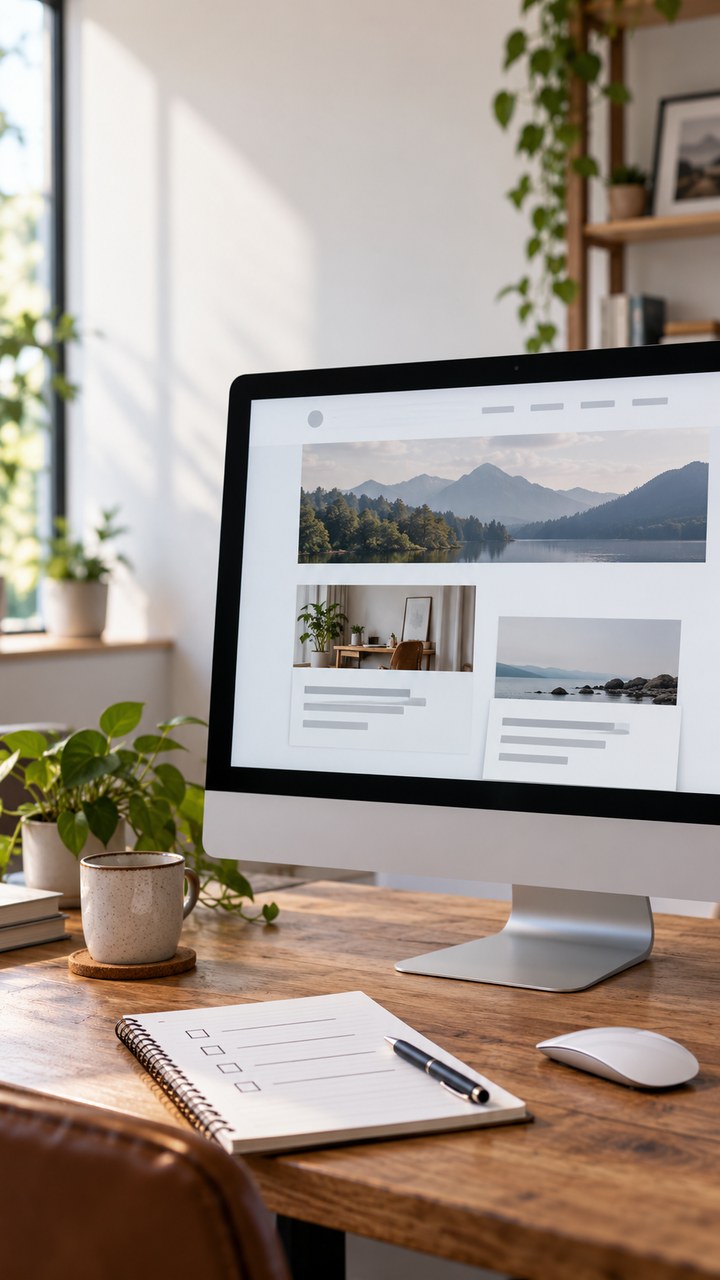
Record the affected URLs, screen size, browser and the action that reveals the problem. Note the update time and every component changed in the same maintenance window. Take a complete file and database backup, and confirm that it can be restored. A backup is useful only when the restore route and access are known.
Avoid pressing update again or disabling random components while customers are using the site. Those actions can change the evidence and introduce a second problem. WordPress recommends keeping backups before upgrades, while its training material describes plugin and theme conflict checks in a controlled troubleshooting process.
Reproduce the problem on staging
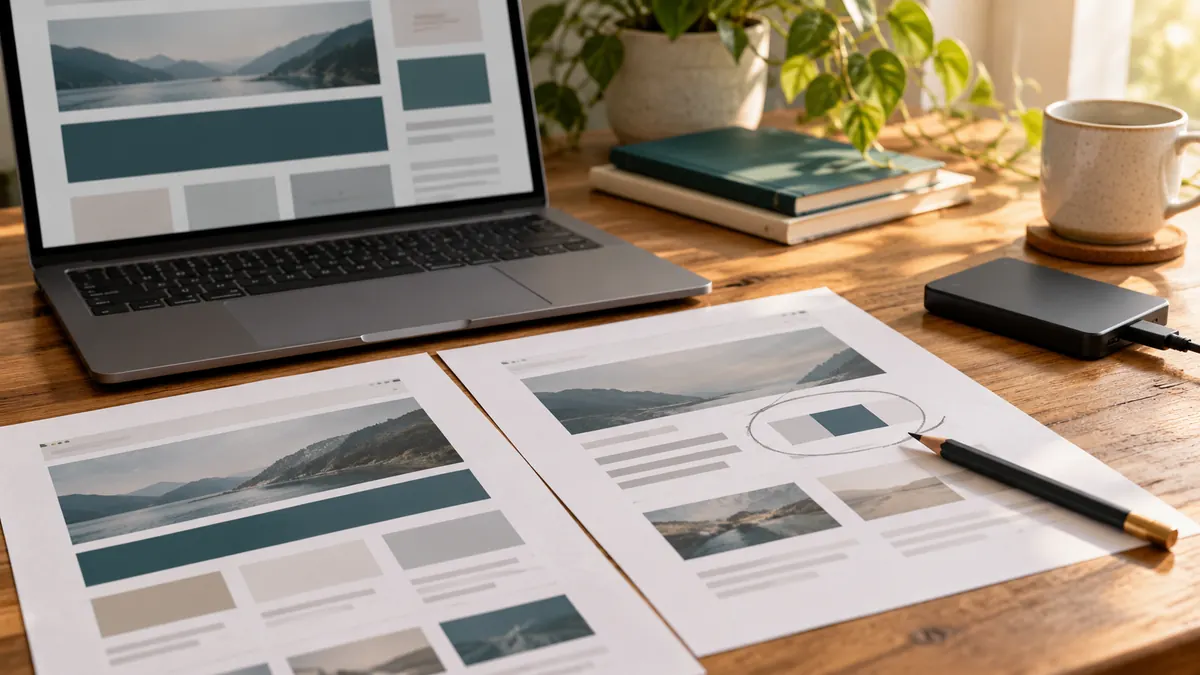
Create a staging copy that is not indexed and does not send real orders, form messages or customer emails. Match the live PHP version, theme, active plugins and relevant configuration. Clear the appropriate caches, then confirm that the same page fails there. If staging behaves differently, compare the environments before assuming the update is the only cause.
On staging, test one variable at a time. A temporary default theme can separate theme output from plugin behaviour. Plugins can then be disabled and restored in a documented order. Browser developer tools and server logs may reveal missing files, script errors or PHP failures.
Choose repair, replacement or rollback
Imagine a shop whose product grid breaks only after its page builder and optimisation plugin are both active. That result points to their interaction; it does not prove that every plugin is slow or unsafe. The practical fix might be a compatible setting, a small code correction, replacement of one abandoned component or an update from its vendor.
Rollback can restore service temporarily, but it should not become an untracked permanent state. Check security implications, support status and the path to a maintained version. Test the chosen fix on staging, then schedule a live change with a backup, a clear checklist and a rollback point.
- Keep a record of versions and tests.
- Verify desktop, mobile, forms and checkout.
- Update documentation after the repair.
Your next step
A practical checklist
- Record affected pages, devices and recent changes.
- Take and verify a restorable file and database backup.
- Reproduce the issue on a protected staging copy.
- Change one theme, plugin or setting at a time.
- Test the repair and rollback route before the live change.